
Gmail’s Promotions tab is an inbox category that automatically collects deals, offers and marketing emails so they sit apart from personal correspondence, and messages sorted here have still been delivered to the inbox rather than Spam. The practical takeaway for senders is that reaching Promotions counts as delivery, not failure, but it changes visibility, and there is no reliable technical trick that forces Gmail to place a campaign in Primary instead.
TL;DR:
- Gmail classifies emails into Promotions based on content cues, engagement signals, and list quality, but it does not influence placement through annotations or visual features.
- Moving emails from Promotions to Primary by users helps Gmail learn individual preferences, but switching default sorting to “Most relevant” is controlled by recipient settings, not senders.
- Landing in Promotions is a delivery outcome, not a failure, and requires focus on reputation, authentication, and engagement metrics rather than formatting or presentation tweaks.
- High complaint or spam rates, weak list engagement, and authentication issues significantly increase the risk of promotional placement and potential spam filtering.
- Technical fixes like SPF, DMARC, DKIM setup, proper list hygiene, and reputation management are essential before optimizing email design or annotations for better inbox placement.
Digistrat
Improve Your Email Deliverability
Digistrat assesses sender reputation, infrastructure, and list quality to help businesses address spam placement and poor email engagement.
Table of Contents
- Where to find the Gmail Promotions tab and what it does
- How Gmail decides what belongs in Promotions
- Why your emails might be landing in Promotions (and what it means for your metrics)
- How to manage the Promotions tab as a user
- Practical best practices for email marketers and senders
- How a deliverability specialist diagnoses Promotions tab problems
- Reputation beats presentation every time
- Digistrat: hands-on help when Promotions problems point to something deeper
- Sources
- FAQ
Where to find the Gmail Promotions tab and what it does
Gmail sorts incoming mail into inbox categories, and Promotions sits alongside Primary, Social and Updates as one of the standard tabs shown on the desktop web interface and within the Gmail app on mobile. Google describes Promotions as the home for deals, offers and other marketing messages, kept deliberately separate from personal mail and from anything caught by Spam filtering. If a reader cannot see the tab at all, it usually means categories have been switched off in the account settings rather than something going wrong with a particular sender.
Finding promotional mail, once you know where to look, is straightforward:
- On desktop, click the gear icon, open “See all settings,” go to the Inbox tab, and tick or untick which categories appear.
- On mobile, the same toggle sits under Settings, then the relevant account, then Inbox categories.
- Typing
category:promotionsinto the Gmail search bar pulls up everything currently sitting in that tab, which is handy for auditing what your own brand looks like from a recipient’s side. - Archived messages drop out of category views entirely, so a promotional email you archived will not reappear under that search.
Google has also introduced a Manage subscriptions view, which lists frequent senders and gives users a single place to review and unsubscribe from mail they no longer want, described in Google’s own announcement of the feature. That view sits outside the tab structure but interacts closely with it, since senders who get ignored in Promotions are exactly the ones most likely to turn up there.
How Gmail decides what belongs in Promotions
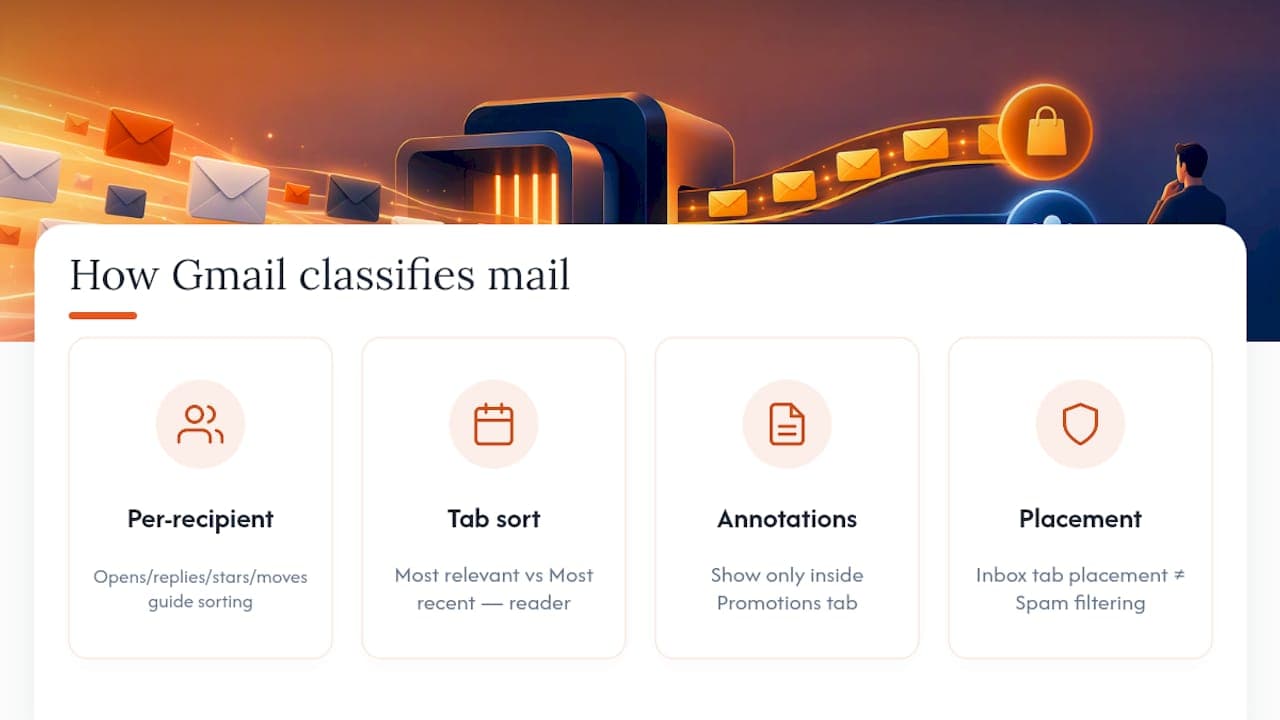
Classification leans heavily on engagement signals gathered from the individual account, not from some universal scorecard applied to every sender equally. Gmail watches how a specific person interacts with a specific sender: whether they open messages, reply, star them, or drag them into a different tab, and it uses that pattern to decide where future mail from the same address should land for that person. Move a message out of Promotions once, and Gmail treats it as a signal about that recipient’s preference, quietly adjusting how it sorts that sender’s mail for them going forward.
Within the tab itself, Gmail offers a choice between “Most relevant” and “Most recent” sorting, and users can switch between the two from the tab’s own settings. “Most relevant” pushes messages Gmail judges more likely to interest that reader towards the top, largely based on past engagement, while “Most recent” simply orders everything by time received. Marketers sometimes assume that switching a recipient’s default sort order is something they can influence directly. They cannot; it is a reader-side preference, not a lever available to senders.
This is where the annotation question comes in, and it trips up a lot of otherwise sensible marketing teams. Promotions supports visual annotations, things like a Deal Annotation badge, a Deal Card layout, or an image preview pulled from the email itself, and Google’s own developer documentation is explicit that these features exist purely to make an email easier to browse once it is already in the tab. They do nothing to influence whether a message lands in Promotions, Primary or Spam in the first place. The promotab FAQ confirms the same point from the other direction: annotations display only when a message is already classified into Promotions, and adding or removing them has no bearing on that classification.
It is worth holding two separate ideas apart here. Inbox placement, which tab a delivered message lands in, is a different question entirely from Spam filtering, which decides whether a message reaches the inbox at all. Confusing the two leads teams to chase the wrong fix.
Why your emails might be landing in Promotions (and what it means for your metrics)
A handful of factors tend to push mail towards Promotions rather than Primary. Content cues matter, since heavy use of discount language, multiple images, or a template that looks visually identical to a thousand other marketing emails all read as promotional to the classifier. List quality matters too: a list full of disengaged or long-dormant addresses generates weak signals that reinforce a promotional read over time. Authentication problems, unrelated to tab placement directly, can still drag a sender towards Spam rather than Promotions, which is a different and more serious problem. Complaint rates matter enormously, and mixing transactional content (order confirmations, password resets) into the same stream as marketing blasts tends to confuse both recipients and the classifier about what kind of sender you are.
Here is the key distinction most teams get wrong: a delivered message that lands in Promotions is not automatically a deliverability failure. It is still inbox delivery, just with reduced visibility compared with Primary, and that distinction should shape how you report on campaign performance.
Pro Tip: Track delivery rate, spam placement, tab placement and engagement as four separate metrics rather than folding them into one “deliverability” number. A campaign can have a perfectly healthy delivery rate while still underperforming on opens purely because of tab placement, and treating that as a spam problem sends your team fixing the wrong thing.
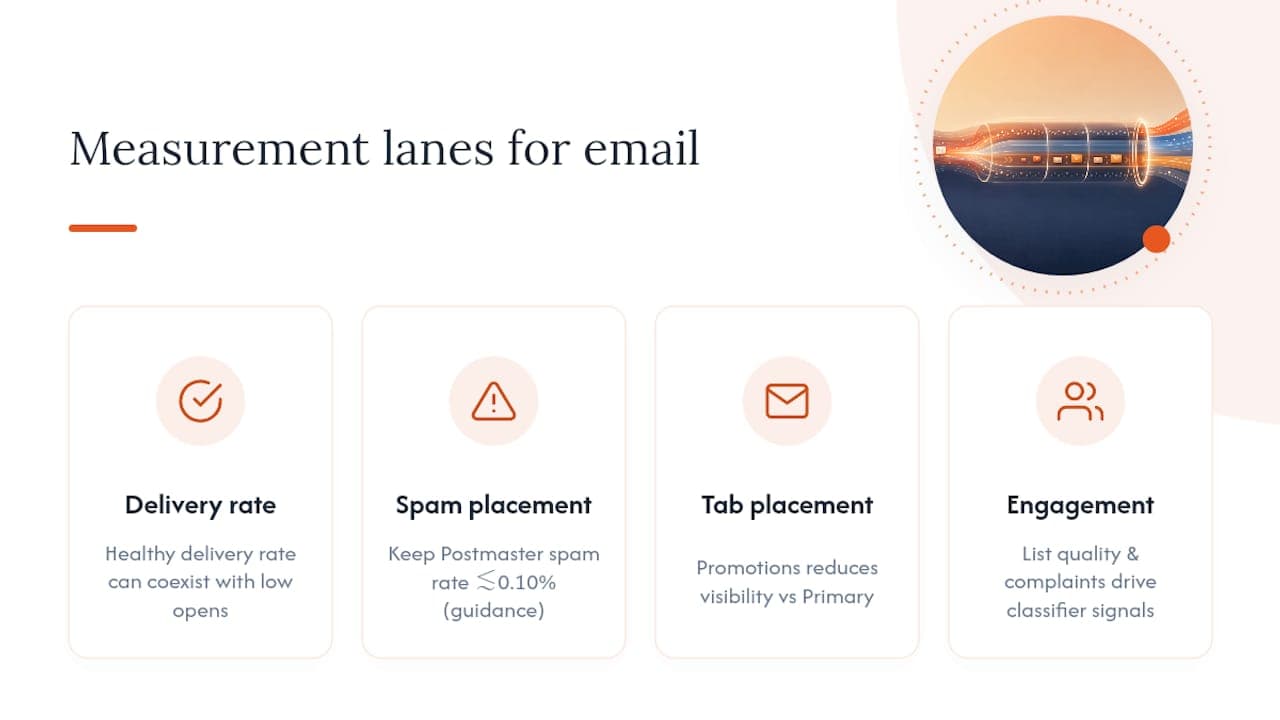
Google’s sender guidelines recommend keeping your Postmaster Tools spam rate below roughly 0.10%, warning that rates reaching 0.30% or higher meaningfully raise the risk of spam classification. That guidance sits closer to the Spam question than the Promotions question, but the two are connected: senders who ignore complaint signals because “at least it’s reaching the inbox” often find that reputation damage catches up with them later. One-click unsubscribe compliance, covered in the same guidelines, is one of the clearest ways to keep complaint rates down before they become a bigger problem.
How to manage the Promotions tab as a user
If you use Gmail day to day, you have more control over the tab than most people realise, and the fixes are quick.
- Move a misfiled message. Drag it from Promotions into Primary, or use the right click menu and choose “Move to Primary.” Gmail records this as a preference signal for that sender on your account specifically, which is why the fix tends to stick for future emails from the same address, as Google explains in its category guidance.
- Use Manage subscriptions for a clean-up. Rather than unsubscribing one email at a time, open the Manage subscriptions view to see everything you are subscribed to and unsubscribe with a single click; compliant senders are required to honour that request promptly.
- Turn categories on or off entirely. If you would rather see everything in one stream, disable Promotions, Social and Updates from Settings and Gmail collapses back to a single inbox.
- Search with
category:promotions. This surfaces every current message in the tab in one place, which is useful both for a personal clear-out and for checking how your own brand’s emails present to a typical recipient.
Archived messages behave differently to note. Once archived, they disappear from any category view, Promotions included, so do not expect an old archived newsletter to show up when auditing the tab later.
Practical best practices for email marketers and senders
Before spending any time on presentation, fix the fundamentals, because no amount of clever formatting repairs a sender reputation problem.
- Authentication first. SPF, DKIM and DMARC need to be configured correctly across every domain and subdomain you send from, since a misconfigured record undermines everything built on top of it.
- Consent and unsubscribe handling. One-click unsubscribe needs to work at the header level, not just as a visible link buried in the footer, and Google’s bulk sender guidelines treat this as a baseline expectation rather than a nice extra.
- Leave annotations for last. Deal Annotations and Deal Cards can make a promotional email easier to scan once it lands in the tab, but Google’s own FAQ on annotations is clear that they carry no weight in classification, so treat them as a polish step, never a fix for a reputation problem.
- Separate your streams. Keep transactional mail, order confirmations, receipts, password resets, on dedicated infrastructure away from marketing sends, so a promotional campaign’s engagement dip never drags down the reputation of messages customers actually expect.
- Warm up new IPs and domains gradually. Sudden volume spikes from an unproven sending source read as a risk signal regardless of how clean your list is.
Google’s own guidance emphasises keeping spam rates very low to minimise the risk of classification damage, warning that high complaint rates meaningfully increase the chance of spam filtering issues according to Gmail’s sender guidelines. Teams that treat email marketing tools like SmartFlowCRM as a way to manage list segmentation properly tend to keep that number under control far more easily than teams relying on manual list hygiene.
How a deliverability specialist diagnoses Promotions tab problems
Working through a stalled campaign, a deliverability specialist starts by separating three distinct questions: is the mail being delivered at all, is it landing in Spam, and is it landing in Promotions rather than Primary. Each needs different evidence, so the diagnostic pass typically includes:
- Reviewing Postmaster Tools data for spam-rate trends and reputation flags across the sending domain.
- Auditing SPF, DKIM and DMARC configuration against the actual sending architecture in use, not just what the DNS records claim.
- Checking complaint rates and list hygiene for signs of stale or disengaged segments dragging engagement down.
- Confirming whether unsubscribe handling meets Gmail’s bulk sender requirements in practice, not just in theory.
Remediation then follows the same order: fix authentication, run a proper IP warm-up where needed, separate transactional from promotional streams, and put ongoing reputation monitoring in place so problems get caught early rather than after revenue has already dropped.
Reputation beats presentation every time
Chasing annotation tweaks while ignoring complaint rates is a common mistake, and it never fixes a placement problem on its own. Fix authentication and engagement first; call in a specialist once you have ruled out the basics yourself and the numbers still will not move.
Digistrat: hands-on help when Promotions problems point to something deeper
If your campaigns keep landing in Promotions and the usual fixes have not moved the needle, that is often a sign the underlying issue sits in authentication or sender reputation rather than anything a template change can solve. Deliverability specialists work with businesses that send opted-in email, carrying out deliverability audits, DMARC/SPF/DKIM setup and remediation, IP warm-up, ESP migration support and ongoing reputation monitoring, all delivered by senior specialists rather than handed off to junior account teams.
Every engagement starts with a free health check to establish whether the problem is placement, reputation or something structural in your sending setup, and Digistrat’s plans (Advised, Managed and Owned) scale from advisory guidance through to fully managed ongoing support depending on how hands-on you need the work to be. For a fixed one-off diagnostic conversation, the advisory session costs £250 and gets a senior specialist looking directly at your numbers within the same call. Book a free health check to find out which fix actually applies to your situation.
Sources
- Organise your emails into categories - Computer - Gmail Help
- Annotate emails in the Promotions tab | Gmail | Google for Developers
FAQ
Where can I find the Promotions tab in Gmail?
It sits alongside Primary, Social and Updates at the top of the inbox on both desktop and mobile, provided categories have not been switched off in Settings. You can also search category:promotions at any time to pull up everything currently sorted there.
Why are my emails going to the Promotions tab in Gmail?
Gmail’s classifier reads signals like promotional content cues, template design, list engagement and complaint rates when deciding placement, as Google’s category documentation explains. It is a placement outcome rather than a delivery failure, so check engagement and reputation metrics before assuming something is broken.
What happened to Gmail Promotions?
Nothing has been removed. Google added a Manage subscriptions view and continues to support annotation features for senders, but the tab itself functions the same way it always has, sorting deals and marketing mail away from Primary while still delivering it to the inbox.
Why are promotions not showing up in my Gmail inbox?
Usually because inbox categories have been disabled in Settings, collapsing everything back into a single stream. Check Settings, then Inbox categories, and re-enable Promotions if you would rather see it as a separate tab.
Does adding Deal Annotations help my emails reach Primary instead of Promotions?
No. Google’s own promotab FAQ states plainly that annotations only display once a message is already classified into Promotions and have no influence on that classification decision.