
Setting up an SPF record means publishing a single DNS TXT record on your domain that lists every server and service allowed to send email as you, ending with a qualifier that tells receivers what to do with everything else. The publishing takes minutes. The part that decides whether your email lands in the inbox is the work before it (finding every sender) and after it (keeping the record under the 10-lookup limit as your stack changes), and that is where most setups quietly go wrong.
This guide walks through the whole process in the order we would do it for a client: audit first, write second, test third, tighten last. It is written for marketing, IT and engineering leads at companies that send meaningful volumes of opted-in email, where a broken record costs real revenue rather than mild embarrassment.
Table of Contents
- What an SPF record actually does
- Step 1: Find every system that sends as your domain
- Step 2: Check what is already published
- Step 3: Write the record
- Step 4: Add it to your DNS
- Step 5: Test it properly
- The 10-lookup limit, and what to do about it
- Reverse DNS and SPF are different jobs
- SPF is necessary, not sufficient
- Keeping the record healthy after launch
- When a specialist is worth paying for
- FAQ
- Sources
What an SPF record actually does
SPF (Sender Policy Framework) lets a domain owner publish a list of the IP addresses that should be trusted to send for that domain, and lets a receiving mail server check whether the connecting IP appears on the list. The NCSC explains SPF in exactly those terms, and its guidance on creating and iterating a record is the closest thing the UK has to an official starting point.
Two details trip people up. First, SPF checks the envelope sender (the Return-Path, sometimes called the bounce address), not the visible From address your recipients see. Second, a pass on its own does not prove much to the receiver unless the domain that passed lines up with the From domain, which is what DMARC alignment checks. If you want the fuller picture of how the three standards fit together, our plain-English explainer on SPF, DKIM and DMARC covers it, and the DMARC alignment guide deals with vendors and forwarding in detail.
Step 1: Find every system that sends as your domain
The NCSC’s own advice is to identify all valid sending sources before you modify anything, and in our experience this is the most overlooked phase of the entire job. The NCSC email security guidance also points to its Mail Check service and to DMARC reporting as ways to see what is genuinely sending in your name, which is far more reliable than asking around the office.
Build an inventory from at least these places:
- Your mailbox provider. Google Workspace or Microsoft 365 for staff email.
- Your marketing platform. Newsletters, promotions, lifecycle journeys.
- Transactional senders. Order confirmations, password resets and receipts, often sent from a different service to marketing.
- Your CRM and sales tools. Sequencing tools and CRMs often send from your domain.
- Support and billing systems. Help desks, invoicing and subscription platforms.
- In-house applications and servers. Anything on your own infrastructure that sends alerts, reports or notifications.
- Forgotten legacy services. The survey tool someone used in 2022, the agency that ran an event campaign, the old ESP you never fully switched off.
For each one, write down the sending domain it uses in the Return-Path, the hostname or IP range it sends from, and the include value its documentation tells you to publish. Where a vendor lets you set up a custom bounce domain, note that too, because it changes how alignment works later.
If you have never looked at DMARC reports for the domain, turn on reporting in monitoring mode first (a p=none policy with a reporting address) and give it a couple of weeks. You will almost certainly find a sender nobody mentioned. Our DMARC checker and monitoring page describes how we approach that visibility step.
Step 2: Check what is already published
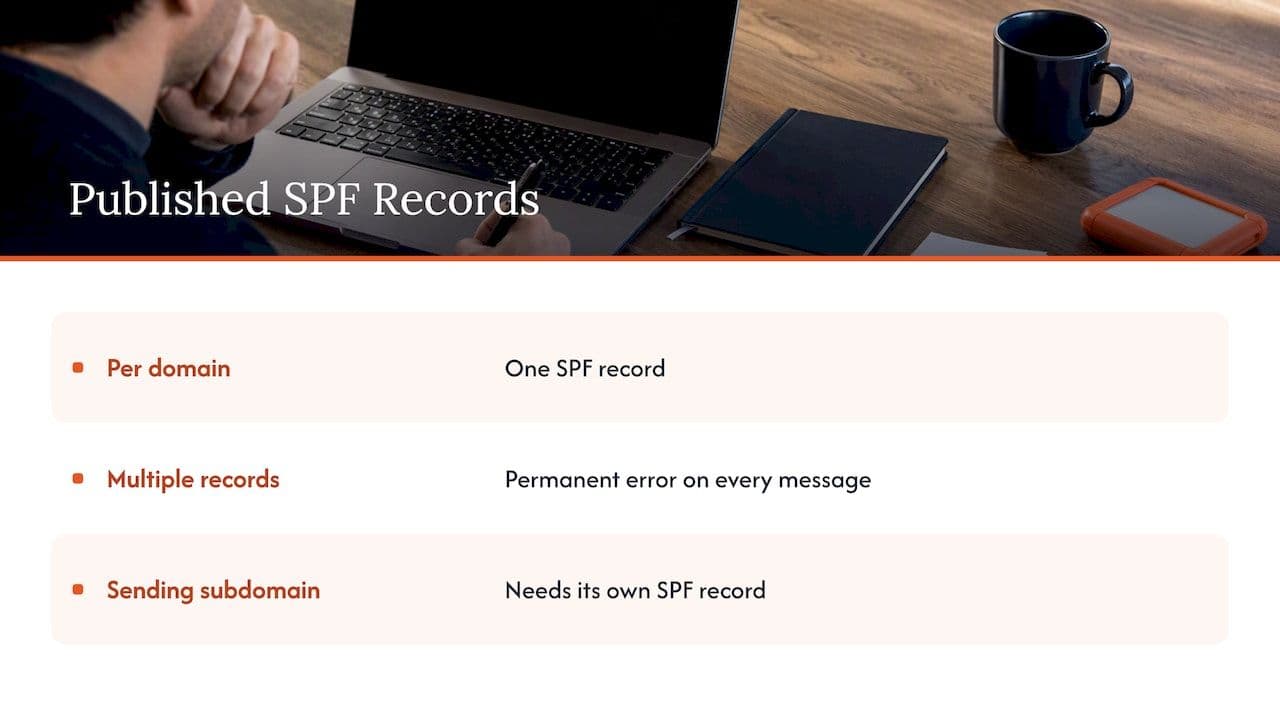
Before you create anything, look up the existing TXT records on your root domain. Many domains already have an SPF record added by whoever set up the mailbox provider, and adding a second one is the single most common way to break SPF.
The rule is simple: one domain, one SPF record. If you find an existing record, you edit it rather than adding another. If you find two, merge them into one. Receivers that see multiple SPF records return a permanent error, and a permanent error is applied to every message, not just the ones from the newer service. The mxio technical reference on RFC 7208 describes this as the most common SPF misconfiguration, typically introduced when an administrator adds a fresh record for a new SaaS tool or marketing platform instead of editing the old one.
Also check subdomains. If you send marketing from a subdomain such as news.yourcompany.co.uk, that subdomain needs its own SPF record if it is used in the envelope sender. Separate subdomains for separate mail streams are good practice, and our guide to the DMARC sp tag explains how policy applies down the tree.
Step 3: Write the record
An SPF record is a TXT record published at the root of the sending domain. It starts with a version tag, follows with a space-separated list of mechanisms (each optionally prefixed with a qualifier), and ends with an all term. DMARCguard’s syntax guide summarises it as a single TXT record beginning v=spf1, evaluated left to right until the first match.
SPF record examples
The NCSC publishes three examples of increasing complexity. The simplest, for an organisation using only Google, looks like this:
v=spf1 include:_spf.google.com ~all
A more typical business record adds a marketing platform and a dedicated IP range of your own. The values below are illustrative, so always take the real include from your vendor’s documentation:
v=spf1 include:_spf.google.com include:spf.your-esp.example ip4:203.0.113.0/24 ~all
Read that left to right: Google’s servers pass, your ESP’s servers pass, anything from the 203.0.113.0/24 range passes, and everything else soft fails.
The mechanisms you will actually use
| Term | What it does | Counts towards the 10 lookups? |
|---|---|---|
| ip4: / ip6: | Authorises a specific address or range | No |
| include: | Pulls in another domain’s SPF record (the usual way to authorise a vendor) | Yes, plus any lookups inside that record |
| a / mx | Authorises the addresses of your A or MX records | Yes |
| exists: | Passes if a DNS name resolves | Yes |
| redirect= | Hands evaluation to another domain’s record | Yes |
| all | Catch-all at the end, with a qualifier | No |
The lookup column comes from RFC 7208 as summarised by DMARCguard, which notes that ip4 and ip6 do not count.
Choosing the qualifier on the end
The four qualifiers are + (pass), ? (neutral), ~ (soft fail) and - (hard fail). The NCSC recommends starting with a soft fail (~all) while you build confidence, with the longer-term aim of supporting DMARC so that unauthorised email is discarded. That ordering matters: if you jump straight to -all before you have found every sender, you will quietly discard your own legitimate mail, and nobody will tell you. In practice, once DMARC is enforced, receivers weigh the DMARC policy heavily, so a well-run ~all and a DMARC policy of quarantine or reject together do the job that a hard fail alone cannot.
Never publish +all. It authorises the entire internet to send as you.
Step 4: Add it to your DNS
The exact clicks depend on where your DNS is hosted (your registrar, a hosting company, Cloudflare, Route 53, Azure DNS and so on), but the shape is the same everywhere:
- Log in to the DNS control panel for the domain.
- Create or edit a TXT record with the host set to
@(or the bare domain, depending on the interface). - Paste the full record as the value, on one line, including
v=spf1at the start. - Keep the quotation marks only if your provider asks for them, since many interfaces add them for you.
- Save, and set a sensible TTL (an hour is fine while you test, longer once stable).
Watch for two classic mistakes. Some control panels split long TXT values into several quoted strings, which is valid, but pasting stray spaces or smart quotes from a document is not. And if you edit the record in a registrar’s template tool, check it has not appended its own default include alongside yours.
Changes usually appear fast, though you will see guidance saying propagation can take up to 48 hours, which is a worst case rather than a typical wait. If you are sending through Google Workspace, Google’s own SPF setup page sets out the include to use and the authentication expectations for senders reaching personal Gmail accounts, including extra requirements for bulk senders.
Step 5: Test it properly
A lookup tool tells you whether the syntax is valid. It does not tell you whether real mail passes. Do both:
- Syntax and lookup count. Run the domain through an SPF checker that reports the number of DNS lookups, and confirm there is exactly one record.
- Real messages. Send a test from every system on your inventory to a mailbox you control, open the full headers and look for
spf=passin the Authentication-Results line, and check which domain it passed for. - Alignment. Confirm the Return-Path domain matches or is a subdomain of your From domain. A pass for your vendor’s domain does not help DMARC.
- Reports. Watch aggregate DMARC reports over the following weeks for sources you missed.
The broader checklist in this five-step SPF, DKIM and DMARC walkthrough is a useful second reference if you want the three protocols laid out together for an email team.
The 10-lookup limit, and what to do about it
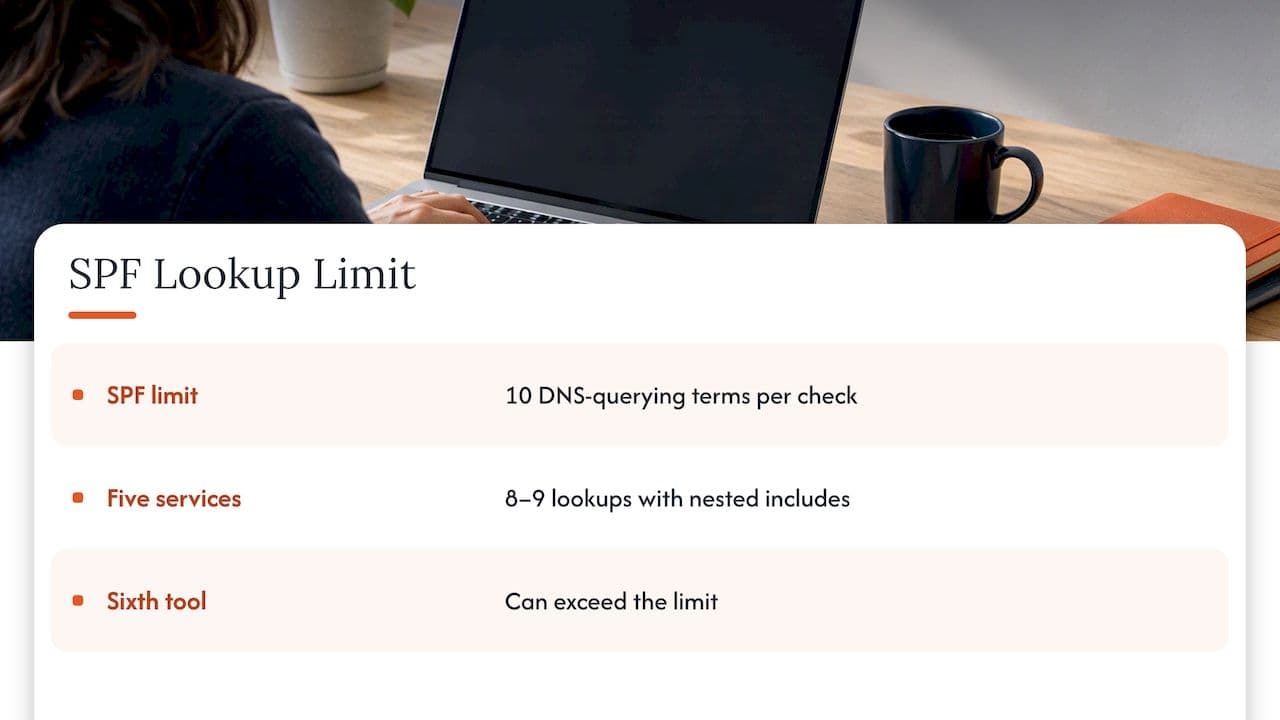
This is where SPF stops being a ten-minute task. RFC 7208 limits SPF evaluation to ten DNS-querying terms per check, and include, a, mx, exists and redirect all count, with nested includes adding to the total. Exceed the limit and the result is a PermError, which causes SPF to fail for all mail from the domain. DMARCguard reported that roughly 4.8% of domains were in violation as of March 2026, so you would not be alone, but you would still be failing.
It is easy to hit. Google, a marketing platform, a CRM, a support desk and a billing tool might each be one include on paper, but each vendor’s record often contains further includes of its own, so five services can easily consume eight or nine lookups. A sixth tool tips you over, and nothing visibly breaks on the day you add it. Mail simply starts failing authentication, and the first symptom is usually a dip in open rates or a rise in spam placement.
Fix it by pruning before you flatten
SPF flattening replaces includes with the raw IP addresses behind them, so the record needs no lookups. It works on the day you do it, and the trouble starts afterwards. Cloud providers update their IP ranges without telling their customers, so a flattened record goes stale the moment a provider moves, and the failures are silent. dmarcian’s best practice guidance warns about exactly this, and dmarc.com’s piece on flattening makes the same point, adding that it is more defensible for providers whose ranges are stable and documented, or where an automated service re-flattens periodically and you monitor the result.
So the order we work in is:
- Remove what is dead. Decommissioned platforms and old agency includes are the quickest win.
- Move mail streams to subdomains. Marketing on one subdomain, transactional on another, each with its own record and its own ten lookups.
- Avoid
mxandawhere you can. They cost lookups and often authorise more than you intend. Mailhardener’s advice against flattening also suggests putting your highest-volume service furthest left and being careful withmx. - Use
ip4for addresses you genuinely control. Your own static ranges are safe to list directly, since you know when they change. - Flatten only what is stable, and only with monitoring. If you must, do it for one provider and set a reminder to check it.
A related point: the lookup limit also covers what happens inside the vendors’ records, which you do not control. If a vendor’s record grows, your total grows with it, which is another reason to keep checking after launch.
Reverse DNS and SPF are different jobs
People often search for reverse DNS setup alongside SPF, and the two are related but separate. Reverse DNS (a PTR record) maps a sending IP address back to a hostname, and receivers commonly check that it exists and matches the forward lookup. It matters if you run your own mail servers or hold a dedicated IP with your ESP. It does not replace SPF, and SPF does not replace it. If you send through a shared ESP pool, the ESP handles this; if you have dedicated IPs, confirm the PTR is set before you begin an IP warm-up.
SPF is necessary, not sufficient
It is tempting to treat SPF as the finish line. It is better seen as one input. Experts at dmarcian describe SPF as fragile because forwarding can break it and it offers little reporting, and they position DMARC as the primary tool for managing reputation. That matches what we see: a domain with a tidy SPF record and no DKIM, or DKIM that does not align, still gets a rough ride at the big mailbox providers.
The sensible sequence is SPF and DKIM in place, DMARC at p=none with reports, then a staged move to enforcement. We set out a realistic timetable in our 90-day DMARC plan for UK teams, and the NCSC’s wider anti-spoofing guidance is the reference to cite if you need to justify the work internally.
Keeping the record healthy after launch
An SPF record is a living document, because your sending stack is. A short routine prevents most incidents:
- Add a line to your vendor onboarding checklist: no new tool sends as the company domain until SPF, DKIM and alignment have been checked.
- Review the record quarterly, removing services that no longer send.
- Re-test the lookup count after any change, including changes by vendors.
- Keep DMARC reporting running so a failing source shows up in a report instead of in a revenue dip.
- Document who owns DNS changes, since marketing, IT and engineering each tend to assume one of the others handles it.
That last point is a bigger cause of broken records than any technical subtlety.
When a specialist is worth paying for
If you have two or three senders and a single domain, you can follow the steps above yourself. It gets harder when you have a dozen platforms, several brands, inherited records nobody dares touch, or a PermError you cannot trace. At that point the cost of a mistake is lost revenue and quietly discarded mail, so it is worth having someone who has seen the failure modes before.
We offer a free health check as the starting point, and our authentication setup and deliverability services cover SPF, DKIM and DMARC setup and remediation, carried out directly by a senior specialist with experience inside major ESPs rather than handed over as a report to implement yourselves. If you would rather talk a specific problem through first, such as a lookup limit you cannot get under or an ESP migration that will change your senders, a one-off advisory session is £250 and gives you 90 minutes of direct advice. For the wider effect of authentication choices on inbox placement, see our page on sending architecture and authentication.
FAQ
How many SPF records should a domain have?
One. Publishing more than one SPF record on the same domain produces a permanent error, and SPF then fails for all mail from that domain. If you need to authorise several services, combine them into a single record with multiple includes, and use subdomains if you run out of lookups.
What happens if my SPF record has too many lookups?
Once evaluation passes ten DNS-querying terms, the receiver returns a PermError and SPF fails for every message, including mail from legitimate senders. Start by removing unused includes and moving streams to subdomains before considering flattening, which brings its own risk of stale IP ranges.
Should I use ~all or -all?
Begin with ~all, as the NCSC recommends during implementation, so that a sender you missed is not rejected outright. Once DMARC reporting shows your legitimate sources all pass and align, enforcement through DMARC is the more reliable way to stop unauthorised mail.
Is SPF already set up for my domain?
Look up the TXT records on your root domain and search for one beginning v=spf1. If your mailbox provider was configured at setup, there may well be one already, and in that case you should edit it rather than add another.
Sources
- NCSC: Create and iterate an SPF record
- NCSC: Email security and anti-spoofing
- DMARCguard: SPF record syntax guide
- mxio: SPF RFC 7208 technical reference
- dmarcian: SPF best practices
- dmarc.com: What is SPF flattening
- Mailhardener: Do not flatten your SPF record
- Google Workspace Help: Set up SPF