
To get off the Barracuda blocklist, you find the cause of the poor reputation, fix it, and then submit a single request through the Barracuda Central removal form with your mail server’s IP address, a contact email, a phone number and a short explanation of what changed. Barracuda says valid requests are typically investigated and processed within 12 hours, but the listing will simply return if the underlying problem (a compromised server, a misconfigured relay, a dirty list) is still there. This guide covers how to confirm the listing, what to fix first, how to word the request, what to do if a recipient is blocking you for another reason, and how to keep your reputation clean afterwards.
Table of Contents
- What the Barracuda Reputation Block List actually is
- Confirm you are listed before you do anything
- Why Barracuda might have listed you
- What to fix before you submit the request
- How to submit the removal request
- How long does delisting take, and what happens next?
- When the problem is one recipient: exemptions and allow lists
- Keeping off the list: what to monitor
- When it is worth bringing in a specialist
- FAQ
- Sources
What the Barracuda Reputation Block List actually is
The Barracuda Reputation Block List (BRBL) is a real-time database of IP addresses with a poor reputation for sending legitimate email, and Barracuda Central manually verifies IPs marked as poor. It is used by Barracuda’s own email security products, which sit in front of a very large number of company mailboxes, so a listing can mean your messages are rejected or quarantined at businesses you have never heard of, all at once.
Two details matter for how you approach removal. First, the BRBL is only one input among several. Barracuda’s own documentation describes it as one part of inbound IP analysis, alongside external block lists and customer-defined allowed or blocked IP lists. Second, reputation is not static: Barracuda says it is continuously updated using sending history and data collected from spam traps and other internet systems. In practice that means a listing reflects behaviour over time, and a delisting that ignores the behaviour is borrowed time.
Confirm you are listed before you do anything
The first job is to separate a genuine BRBL listing from a bounce that merely mentions Barracuda. Start with the bounce message itself. A rejection that refers to a block list or to reputation is a different animal from a content filter decision or a policy rejection on the recipient’s side, and you want the exact text and the IP address that connected, which is not always the one you assume (especially if you send through an ESP, a relay or several outbound gateways).
Then run that IP through the Barracuda Central IP and domain lookup. It tells you whether the address currently has a poor reputation. If you send through a shared platform, be aware that the IP belongs to your provider, and you will not be able to submit a meaningful removal request about a pool you do not control. In that case, tell your ESP, give them the bounce text and the time stamps, and ask what they are doing about it. If you are on a dedicated IP, the request is yours to make.
A quick checklist before moving on:
- Collect three or four bounce messages from different recipient domains, with times and sending IPs.
- Confirm which IP actually delivered those messages by reading the Received headers of a message that did get through.
- Run each IP through the Barracuda lookup and note the result and the date.
- Check whether the same IP is also flagged elsewhere, since a Barracuda listing is rarely the only symptom.
If the lookup shows your IP is fine and only one recipient is rejecting you, skip ahead to the section on exemptions, because delisting is the wrong tool.
Why Barracuda might have listed you
Barracuda Central is fairly direct about the causes. On its own page, it says a valid IP may be marked poor because the email server or a PC is infected, the server is improperly configured, the address is a dynamic IP previously used by a known spammer, or bulk email violates CAN-SPAM. It also names an insecure wireless network and, rarely, an incorrectly configured recipient Barracuda firewall as possible reasons for a poor reputation.
For a UK or European business sending opted-in marketing and transactional email, the real-world versions of those causes tend to look like this:
| Likely cause | What it looks like in practice | First thing to check |
|---|---|---|
| Compromised account or server | Sudden volume spike, odd sending times, mail you did not send | Outbound logs, recently changed passwords, plugins on web forms |
| Misconfiguration | Open relay, missing or generic reverse DNS, mismatched HELO name | PTR record, HELO/EHLO hostname, relay restrictions |
| Poor list quality | High bounce rate, spam trap hits, old addresses mailed after a long gap | Bounce handling, list age, how addresses were collected |
| Inherited IP history | A new dedicated IP that previously belonged to someone else | Prior reputation, warm-up plan |
| Authentication gaps | SPF failing, no DKIM signature, DMARC at p=none or absent | Alignment of the visible From domain with SPF and DKIM |
Authentication does not appear in Barracuda’s list of reasons as such, so do not expect fixing SPF alone to clear a listing. It does, however, make everything else easier to diagnose, and a sender who cannot demonstrate who they are is a harder case to argue for. Our guide to SPF, DKIM and DMARC explains how the three fit together and where they most often go wrong.
What to fix before you submit the request
This is the step the ranking guides tend to rush, and it is where most failed requests are decided. Barracuda’s form states that the BRBL is generated by automated systems and that requests without valid information will be ignored, and so will multiple requests. You get, in effect, one good attempt, so use it after the cause is dealt with rather than hoping the form itself does the work.
Work through these in order.
1. Rule out a compromise
If any account, server, form handler or office machine behind that IP could be infected or abused, deal with it first. Rotate credentials on SMTP accounts, check for unfamiliar forwarding rules and scripts, and look at the outbound queue for mail nobody in the business recognises. Barracuda explicitly lists infected servers and PCs as a reason, so an unresolved compromise will bring you straight back.
2. Correct the server configuration
Make sure the IP has a sensible reverse DNS (PTR) record that resolves to a hostname you control, that the hostname in the SMTP greeting matches it, and that the server is not relaying for anyone who should not be using it. These are dull fixes, and they are the ones that most often turn out to be the whole story for self-hosted or older on-premise systems.
3. Clean up the list and the sending pattern
If the root cause is list quality, remove hard bounces and addresses that have not engaged for a long time, and stop mailing anything collected without clear consent. For sending volume, pause any large one-off sends to cold segments. If you are tempted to push a big campaign through the moment the listing lifts, resist it, because a sudden jump looks exactly like the behaviour that caused the listing in the first place. Our piece on how to fix email deliverability issues sets out the order we work in.
4. Tighten authentication
Get SPF and DKIM passing and aligned with your From domain, and move DMARC towards enforcement once you know every legitimate source of your mail. If you want a practical, B2B-flavoured walk through the wider programme, this B2B email deliverability checklist gives a structured 90-day approach you can adapt.
5. Write down what you changed
You will need a short, factual explanation for the form, so keep notes as you go: what caused it, what you changed, and when. One or two plain sentences are better than a long defence.
How to submit the removal request
Go to the removal request page. The form asks for your email server’s IP address, your email address, a phone number and an optional reason for removal, with some fields marked as required. Fields about a Barracuda customer name and email address are there for cases where a Barracuda customer is helping to sponsor the request.
A few practical points:
- Use the right IP. Submit the address that actually connected to the recipient, as found in your headers, not the address of your website or your marketing platform’s dashboard.
- Use a monitored contact. Use a role mailbox at your own domain rather than a free webmail address, and a phone number that someone will answer.
- Always give a reason. Although the field is optional, a valid explanation is what Barracuda says its 12-hour handling time depends on. Something like the following works: “The listing followed a compromised SMTP account, which we have disabled and rotated. Reverse DNS has been corrected, and we have removed hard-bounced addresses from the list. Sending volume is unchanged and we are monitoring complaint and bounce rates.”
- Submit once. Barracuda states that multiple requests will also be ignored, so do not resubmit every few hours out of nerves.
Many people mention that the process feels like a black hole when it fails, and the usual reason is a missing explanation or a cause that has not been fixed. If you cannot work out what is wrong, it is better to stop and diagnose than to burn your single request.
How long does delisting take, and what happens next?
Barracuda says requests are typically investigated and processed within 12 hours when they carry a valid explanation. Some third-party guides quote 24 hours, so allow a working day before you worry. Because the list is automated and reputation is continuously updated, a delisted IP can be listed again if the same behaviour recurs, which is why the weeks after removal matter more than the removal itself.
Once you have been removed:
- Re-run the lookup to confirm the status has changed, and record the date.
- Keep sending at your normal volume and to your engaged segments first.
- Watch bounce codes from Barracuda-protected recipients, which you will see in your ESP’s logs, to confirm that mail is flowing.
- Bring larger sends back gradually over several days rather than in one burst.
A business that sends transactional mail (password resets, order confirmations) from the same IP as its marketing should consider whether those two streams ought to be separated, so that a marketing problem does not take down customer-critical messages. That is an infrastructure question worth raising with whoever owns your sending setup.
When the problem is one recipient: exemptions and allow lists
Sometimes your IP is not listed at all, and one customer’s Barracuda appliance is rejecting you anyway, perhaps because of a local policy or because of a misconfigured firewall (Barracuda Central itself mentions this as a rare cause). Here removal from the BRBL is the wrong remedy, and the person who can help is the recipient’s administrator.
Barracuda’s documentation says administrators can exempt a trusted sender IP from BRBL checks by entering the IP address, netmask and an optional comment under Barracuda Reputation Block List Exemptions and saving the changes. Two features of this are worth passing on when you contact them.
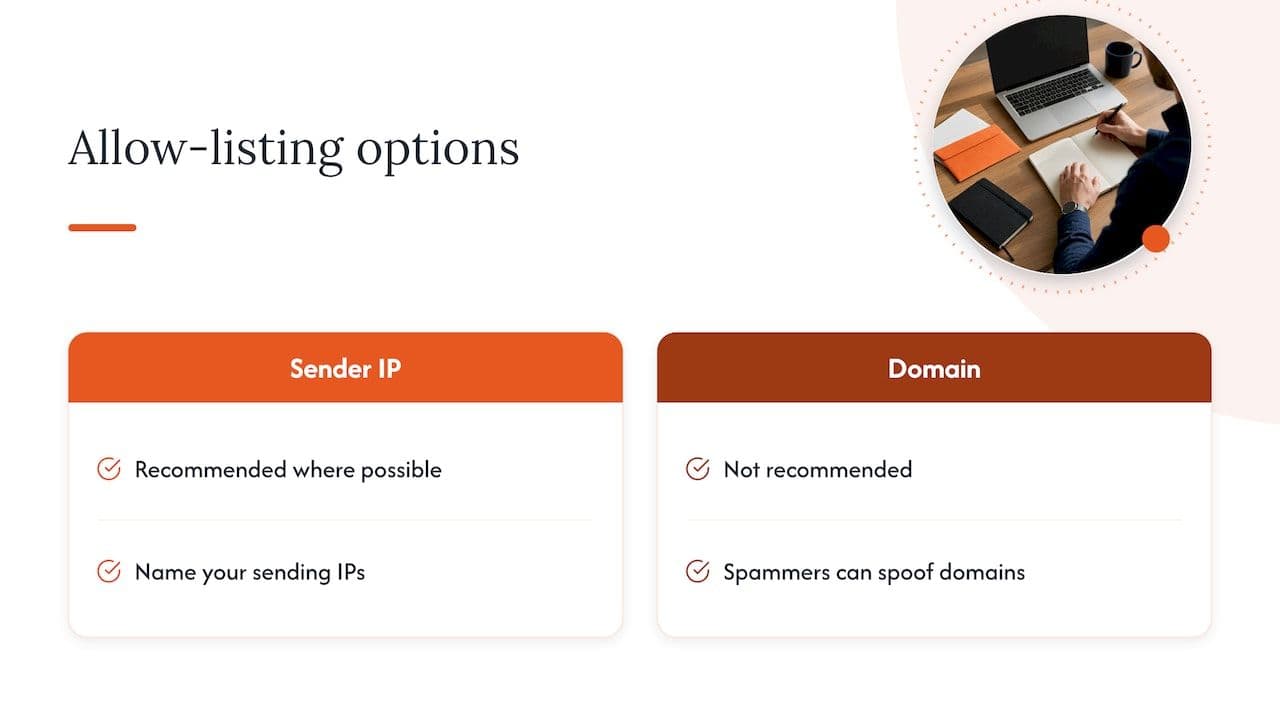
First, Barracuda recommends allow-listing known-good sender IP addresses where possible and does not recommend allow-listing domains, because spammers can spoof domain names. So the request you send to the customer should name your sending IPs, not just your domain. If you want a plain-English view of why a domain-wide allow list is risky, this guide on warming up an email domain touches on the reasoning behind keeping sender trust narrow and earned.
Second, the same documentation explains that an RBL exemption overrides the BRBL and other RBL checks, while mail from the exempt IP remains subject to the other spam and virus checks. An exemption therefore gets you past the reputation gate but does not guarantee delivery if the message content looks suspicious. It is also set at account level, so each Barracuda customer has to do it for themselves. For your own sales or support team, it helps to keep a short, polite note that explains how a recipient’s IT team can do this, with your sending IPs listed.
Keeping off the list: what to monitor
A listing is almost always the last link in a chain of earlier signals. By the time Barracuda lists you, your complaint rate, bounce rate or spam trap exposure has typically been drifting for a while. The things worth watching weekly are:
- Hard bounce rate by recipient domain, and any sudden change in it.
- Spam complaint rate in the feedback loops your mailbox providers offer.
- Block and deferral messages in your sending logs, grouped by the recipient’s filtering product.
- Volume per IP and per sending stream, to catch unplanned spikes.
- Authentication results, particularly DMARC aggregate reports showing unknown sources using your domain.
If you want to build this into a routine, our sender reputation playbook describes how to detect problems in hours rather than weeks. Barracuda is not the only gatekeeper either: the same discipline applies to other security filters, and our write-up on Trend Micro email reputation shows how a similar block plays out and gets resolved there.
When it is worth bringing in a specialist
Most single-IP listings with an obvious cause can be dealt with in-house in a day or two. It is worth getting help when the cause is not obvious, when the listing keeps returning, when you send from an IP you share with others, when you are moving between ESPs, or when revenue is already being lost because customers are not receiving their messages.
Digistrat works with UK and European senders on exactly this: a senior specialist looks at your sender reputation, infrastructure and list quality, and then carries out the fixes rather than handing you a report. We start with a free health check, which is the right first step if you are unsure whether you have a Barracuda problem, a list problem or an authentication problem. If you would rather talk it through with someone who has worked inside major ESPs, a 90-minute advisory session is available for £250, one-off. If you have inherited a programme that nobody fully understands, it also helps to read our guide on what to do when you inherit an email programme with problems before you start changing settings.
FAQ
How do I get off the Barracuda blacklist?
Fix the cause, such as an infected server, a misconfigured mail server or a poor list, and then submit one request through Barracuda Central’s removal form with your IP, contact details and a clear explanation. Barracuda says valid requests are typically processed within 12 hours. Repeat or poorly explained requests are ignored.
Why is my email being blocked by Barracuda?
Either your sending IP has a poor reputation on the BRBL, or a recipient’s Barracuda appliance is applying its own rules. Barracuda Central lists infections, misconfiguration, previous spammer use of a dynamic IP and bulk mail that breaks CAN-SPAM among the reasons for a poor reputation. Read the bounce text and run the IP through the lookup to see which case you are in.
How do I unblock a sender in Barracuda?
If you are the recipient’s administrator, add the sender’s IP address and netmask under the Barracuda Reputation Block List Exemptions and save. Barracuda prefers narrow IP allow-listing to domain allow-listing because domains can be spoofed. The exemption is account-level, and the message is still checked for spam and viruses.
Does removing my IP from the Barracuda list guarantee inbox placement?
No. Delisting only removes one reputation barrier, and other filters, mailbox providers and content checks still make their own decisions. If your underlying practices have not changed, a relisting is likely, so use the weeks after removal to monitor bounces, complaints and authentication.
Sources
- Barracuda Central Reputation System removal request
- Barracuda Central IP and domain lookups
- Barracuda Central reasons for a poor reputation
- Barracuda Campus: Step 1, understand the concepts
- Barracuda documentation: Reputation and Email Categorization
- Barracuda Email Security Gateway: IP Analysis Inbound